
// Software // Atari ST
ClaudeST
A native GEM client for claude.ai on the Atari ST, STE, Mega ST/STE, TT and Falcon, through a Raspberry Pi bridge.

- ST
- STE
- Mega ST
- Mega STE
- TT
- Falcon
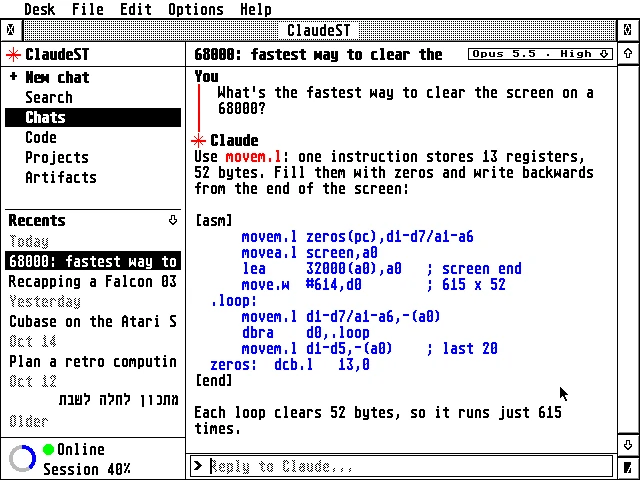
A chat in 16 colours: Claude answers “What’s the fastest way to clear the screen on a 68000?” with assembly code, beside the sidebar of chats, the model chip in the title bar and the usage ring at Session 40%.
Latest release v1.5722 Oct 2026CLAUDEST-1.57.zipFree, GPL v2
Your claude.ai chats, projects, Claude Code sessions and artifacts in a GEM window, with replies streaming in as Claude writes them.
The Story
ClaudeST is laid out like the website: chats, Search, Code, Projects and Artifacts on the left, the open conversation on the right, and replies streaming in as Claude writes them. It uses your real claude.ai account, with recent and pinned chats, Claude Code sessions to read and answer, files to attach, and a model and effort for each chat. Hebrew is written right to left, with its own keyboard layout.
An 8 MHz 68000 can’t do modern HTTPS, so a small Python program, the bridge, does it on a Raspberry Pi or any Linux computer on the network. The Atari reaches it through STinG or a null-modem cable and does all the drawing and word wrapping itself. The bridge can use the Anthropic API instead of a claude.ai account; ClaudeST is an unofficial client, not affiliated with Anthropic or Atari.
How it connects
plain TCP, port 2323
19200 baud
Getting started
- Log in to claude.ai in a desktop browser.
- Open the developer tools (F12). Go to Application (Chrome) or Storage (Firefox), then Cookies, then
https://claude.ai. - Copy the value of the
sessionKeycookie. It starts withsk-ant-sid. The key gives full access to your account; it is stored only on the Pi, readable only by root and the bridge. - Give the Pi a fixed IP address, for example with a DHCP reservation in your router, and the Atari one too unless the bridge is to accept any address. Then install the bridge with AERA-Gateway, in your home folder on the Pi:
sudo apt install -y git,git clone https://github.com/whomper/AERA-Gateway.git,cd AERA-Gateway,./update-pi.sh, thensudo gateway/aera-gateway install claude --network --atari 192.168.1.20with your Atari’s address. The installer asks for the session key and runs the bridge as the serviceclaude-st; use--atari IP1,IP2for several Ataris, or--atari anyfor any address on your network. - Load STinG and check that the network works, for example by pinging the Pi.
- Copy
CLAUDEST.PRG,CLAUDEST.INF,CLAUDEST.HYPandCLAUDEST.REFinto one folder, any folder on any drive. ClaudeST keeps its settings inCLAUDEST.INFnext to the program. - Put the Pi’s address on the
HOST=line ofCLAUDEST.INFwith any text editor, e.g.HOST=192.168.1.10, or set it from ClaudeST itself in the next step. - Run
CLAUDEST.PRG. If it doesn’t know the Pi’s address yet, choose Options ▸ Settings… (Ctrl+,), pick Network and type it (port 2323), or type/connect 192.168.1.10in the reply line. The status line at the bottom left shows Connecting…, then Online, with a green dot.
Highlights
- Like the website: chats, Search, Code, Projects and Artifacts on the left, replies streaming in.
- Your real claude.ai account: recent and pinned chats, projects, search.
- Claude Code sessions: read them and reply.
- Artifacts to view and save to disk, Word documents included.
- Attach files of any kind, from the file selector or dropped on the window.
- Model and effort for each chat, from a chip in the title bar.
- Usage at a glance: a ring for the current session, and an Account page with your plan.
- Hebrew: right-to-left text and a Hebrew keyboard layout.
Requirements
- An ST, STE, Mega ST/STE, TT or Falcon
- TOS 1.04 or newer, EmuTOS or MiNT
- A 640×200 or larger screen
- About 250 KB of free RAM
- STinG with a working network, or a null-modem serial cable
- A Raspberry Pi, or any Linux computer, on the same network
- A claude.ai account, or an Anthropic API key
In the download
| CLAUDEST.PRG | the program |
| CLAUDEST.HYP, CLAUDEST.REF | the help, for EHypView or ST-Guide: keep them next to CLAUDEST.PRG and press Help |
| CLAUDEST.INF | an example settings file, kept next to CLAUDEST.PRG (or use Options ▸ Settings) |
| CLAUDEST.RSC, CLAUDEST.ICN, CLAUDSMK.ICN | the desktop icon, black-and-white and 16-colour, and the black-and-white icon and its mask for icon editors |
Credits
- Written by AERA | Erez Yaary
- Free software under the GNU GPL, version 2 or later
- Unofficial client, not affiliated with Anthropic or Atari
- Tested on hardware: Atari 1040 ST (4 MB) and Falcon030 with DFB1
- Tested in emulation: ST (1 MB and 4 MB), TT030 and Falcon030, with TOS 1.04, 3.06, 4.04 and EmuTOS
// Works with