
// Software // Atari ST
ECal
A calendar for the Atari ST, STE, TT and Falcon: a GEM desk accessory that syncs with iCloud and any CalDAV server.

- ST
- STE
- TT
- Falcon
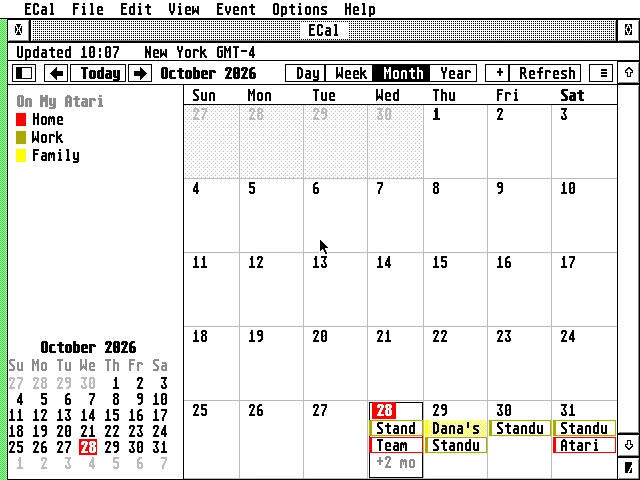
Month view on a Falcon in 256 colours: October 2026, with the Home, Work and Family calendars in red, olive and yellow, today (Wednesday the 28th) in red with “+2 more” under its events, and the calendar list and a small month on the left.
Latest release v2.4711 Nov 2026ecal-2.47.zipFree, GPL v2
Day, week, month and year views, synced both ways with iCloud and any CalDAV server, in the Desk menu of an Atari.
The Story
ECal waits in the Desk menu like any GEM accessory, so reminders come up over any program, and it syncs in the background with its window closed. It is a CalDAV client: iCloud and other servers (Fastmail, Nextcloud, Radicale) sync both ways, .ics feeds can be subscribed to, and calendars can be kept on the Atari itself.
On a Falcon or TT it connects by itself with TLS 1.2, using the DSP. On an ST or STE it goes through the AERA Gateway, a small service on a Raspberry Pi or in Docker that makes the secure connections, unpacks answers and trims big feeds. Hebrew runs throughout: right to left, the Israeli keyboard on F10, Hebrew dates and repeats.
How it connects
Getting started
- Download
ecal-x.y.zip(or each file) from Releases. Copyecal.accto the root of the boot drive and the rest to a folder of its own; ECal asks where. - On an ST or STE, set up the Gateway on a Raspberry Pi, following the guide.
- Reboot and choose ECal in the Desk menu. In Settings…, give the Gateway, or on a TT or Falcon tick Direct connection, and set the clock’s time zone.
- Choose Add account or calendar… and enter an app password.
- Press Help for the guide.
Highlights
- Like the Mac’s Calendar: day, week, month and year views, each calendar in its own colour.
- iCloud and CalDAV (Fastmail, Nextcloud, Radicale…), synced both ways.
- Subscriptions to
.icsfeeds, and calendars kept on the Atari. - Every repeat RFC 5545 has, with “only this one” or “all future ones” edits.
- Invitations by name from EContact.
- Reminders over any program, and a background sync with the window closed.
- Modern but Atari: accessory or program, right-click menus, drag and drop, iconify.
- Secure: TLS 1.2 on the TT and Falcon, with the DSP; ST and STE through the Gateway.
- Hebrew throughout: right to left, the Israeli keyboard (F10), Hebrew dates and repeats.
- Time zones, offline, TT RAM and GDOS fonts.
Requirements
- TOS 1.04 to 4.x, EmuTOS, MagiC or MiNT
- ST medium or high, TT or Falcon resolution
- 1 MB of RAM; 2 MB for big calendars
- STinG or MiNTnet
- ST and STE: the AERA Gateway on a Raspberry Pi or in Docker
- A Direct connection: a TT or Falcon
- On a 1 MB ST, ECal’s accessory or EContact’s, not both
- Under TOS,
foldr100.prgfirst inauto, and STinG’s Delay set to the machine
In the download
| ecal.acc, ecal.prg | the accessory, or the same as a program, for every Atari |
| tls.ovl, cacert.pem, roots.dat | the Direct connection (TT, Falcon), loaded only when used |
| ecal.hyp, ecal.ref | the guide, opened by the Help key |
| icons/ | ECal’s desktop icon |
Credits
- Written by AERA | Erez Yaary
- Free software under the GNU GPL, version 2 or later
- TLS by BearSSL (MIT licence)
- Root certificates from Mozilla’s CA list (MPL 2.0)
// Works with